
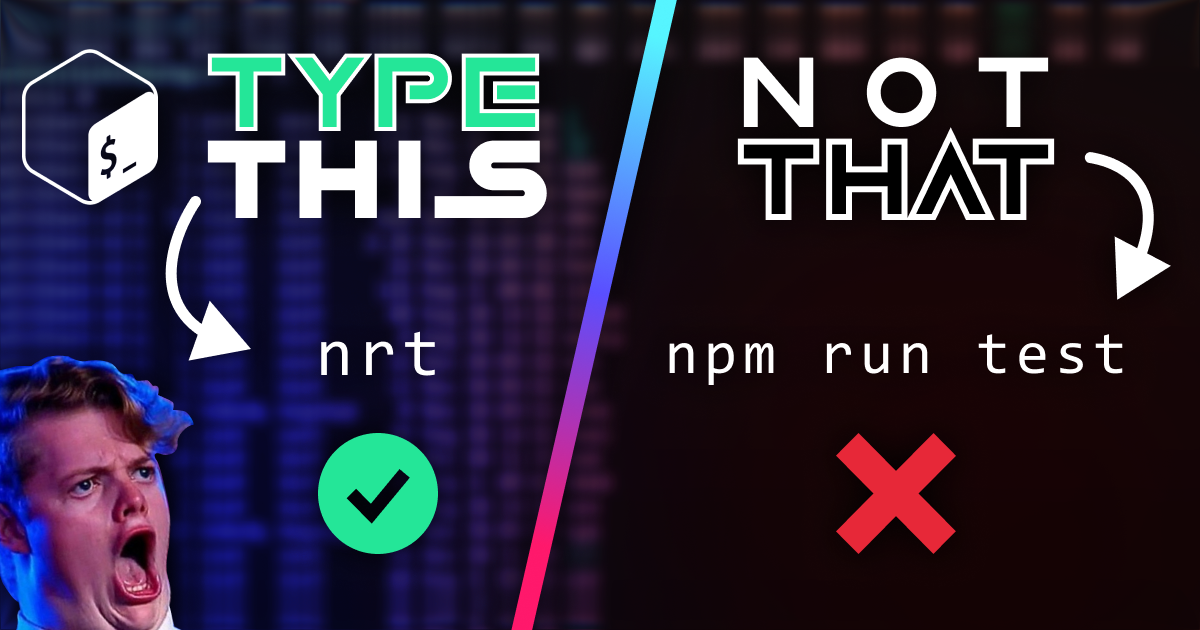

Do you ever get tired of typing the same, old, long-winded terminal commands every day? Well, gather 'round, coders. I'm here to tell you about a little secret weapon that every dev should have in their arsenal. It's called the .bashrc file, and it's about to become your new best friend. 🧙♂️✨
How does it work?
Think of your .bashrc file as your personal command-line spellbook. Every time you open a new terminal session, your bash shell reads this file and loads up all your custom settings and, you guessed it, aliases. An alias is simply a shortcut. You tell Bash, "Hey, when I type gs, I actually mean git status."
Your alias definitions might look something like this:
alias nrd="npm run dev"alias nrb="clear && npm run build"Note how you can chain commands, such as clearing the terminal before executing the next command.
How to Get Started
Your bashrc file can be found at the following locations. If it doesn't exist yet, you can create it manually.
- 🪟 Windows:
C://Users/{{your_username}}/.bashrc - 🍎 MacOS:
/Users/{{your_username}}/.bashrc - 🐧 Linux:
~/.bashrc
While you can certainly edit the file in-terminal via nano, I recommend opening it with your preferred code editor with an integrated terminal so that you can edit and test more seamlessly.
Add your preferred aliases one line after another like so:
alias gs="git status"alias gp="git push"alias ga="git add ."alias nrd="clear && npm run dev"alias nrt="clear && npm run test"alias nrb="clear && npm run build"You can even use a functional syntax to pass arguments to the alias template:
gcmnv() {
  git commit -m "$1" --no-verify
}
Save the file, restart your terminal, then use your new alias like so:
gcmnv "my commit message"Developer Aliases You NEED in Your Life!
Here are some ideas to supercharge your development workflow:
Node / NPM / Yarn:
alias nr='npm run'alias ni='npm install'alias nis='npm install --save'alias nrd='npm run dev'alias nrs='npm run start'Git:
alias gs='git status'alias gc='git commit'alias gcm='git commit -m'alias gl='git log --oneline --graph --all'alias gb='git branch'alias gco='git checkout'alias gd='git diff'Navigation & Files:
alias cd1='cd c://Users/erick/dev/projects/some_project/src/client'alias ll='ls -alF'alias ..='cd ..'alias ...='cd ../..'alias home='cd ~'alias desk='cd ~/Desktop'Docker:
alias dcup='docker-compose up -d'alias dcdown='docker-compose down'alias dclogs='docker-compose logs -f'Your Project Specifics:
Maybe you have a project with a super long pathname:
alias myproj='cd ~/dev/projects/super_long_project_name/src/client'A common build command?
alias buildweb='npm run build-webpack-prod'Why This Matters for Your Dev Workflow
It's not just about saving keystrokes, though that's a huge win. It's about:
- Reducing Cognitive Load: Less time remembering commands, more thinking about what you're trying to achieve.
- Preventing Typos: I don't know about you, but when other people start watching, I type like a 5 year old. 😭 Shorter commands mean fewer chances for pesky errors getting in the way or making you look bad.
- Boosting Speed & Flow: You'll navigate your terminal and execute tasks with lightning speed.
- Customizing Your Environment: Your terminal becomes truly yours, tailored to your unique development habits.
So, if you haven't dived into the world of bash aliases yet, what are you waiting for? Open up that .bashrc file, unleash your creativity, and prepare to have your development workflow transformed. 🙌